
How to Stop Barcode Smudging at the Source
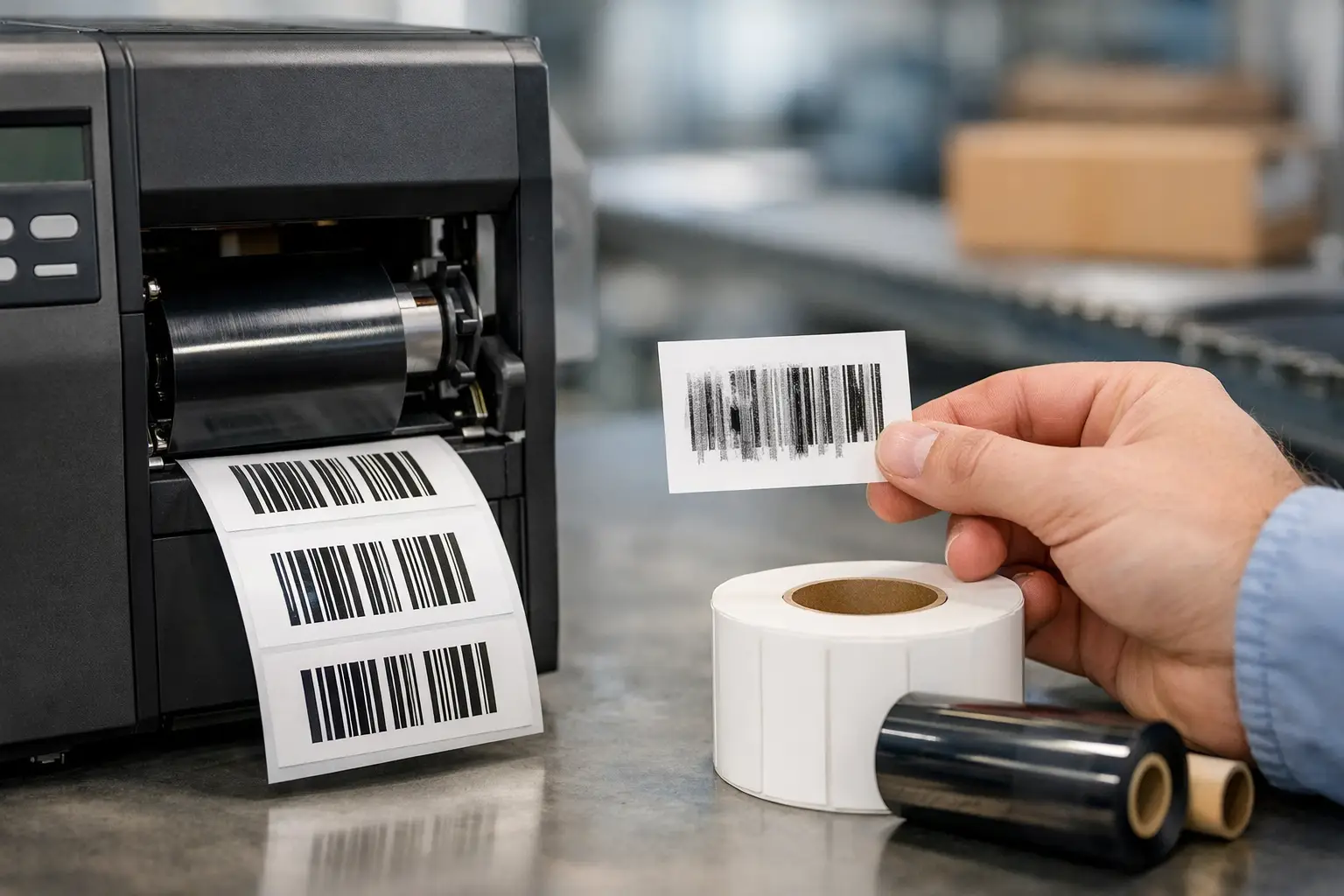
A barcode can look acceptable at the printer and still fail at the dock door, on the production floor, or at a customer’s receiving station. The difference is often smudging: bars that spread, rub off, blur at the edges, or transfer to another surface. Knowing how to stop barcode smudging starts with treating the label, ribbon, printer, settings, and end-use environment as one system rather than separate purchases.
For operations that depend on inventory accuracy, shipment tracking, compliance, or product traceability, a smudged barcode is more than a print-quality issue. It creates rescans, relabeling labor, delayed shipments, chargebacks, and uncertainty about whether the correct product moved through the process. The right correction depends on what is smudging, when it happens, and what the label must withstand after it leaves the printer.
Identify When the Smudge Occurs
The timing of the defect points to the likely cause. If ink is visibly wet or smears immediately as labels exit the printer, start with the ribbon and print settings. If labels look clean initially but rub off after packing, abrasion resistance or an incompatible ribbon-label combination is more likely. If the barcode becomes unreadable after refrigeration, outdoor exposure, cleaning, or contact with oil, the problem is usually the facestock, adhesive, or print method selected for the application.
Run a simple handling test before printing a full production run. Print several labels, allow them to cool briefly, then rub the barcode with a dry thumb, a gloved hand, and the packaging material it will contact. Test labels at the beginning, middle, and end of the roll. A defect that changes during the roll may indicate ribbon tracking, printhead contamination, media tension, or a worn printhead rather than the label material itself.
Do not rely on appearance alone. A scanner may read a barcode with visibly soft edges in one orientation but fail when the label is angled, wrinkled, or scanned by a different device. Verify samples with the scanners used in the actual operation.
Match the Ribbon to the Label Material
Thermal transfer printing creates durable images by transferring ribbon coating onto a label surface. The ribbon must be compatible with that surface. A low-cost wax ribbon can print well on uncoated paper labels for dry, low-contact applications, but it is not the right choice for labels that will be handled frequently or exposed to friction.
Wax-resin ribbons provide better smear and scratch resistance than wax and are commonly appropriate for coated paper and many synthetic labels. Resin ribbons offer the highest resistance to rubbing, chemicals, moisture, and heat, but they require compatible synthetic materials and typically need more print energy. Choosing resin simply because it is tougher can produce poor results if the label surface is not designed for it.
The practical question is not which ribbon is “best.” It is which ribbon and label combination will survive the job at the lowest total cost. A warehouse location label may perform well with paper and wax-resin. A chemical drum, freezer carton, automotive component, or outdoor asset label may require a synthetic facestock with a resin ribbon. Using the wrong combination can make a low-priced supply purchase expensive through reprints and failed scans.
Direct thermal labels are another consideration. They do not use a ribbon, so ribbon smearing is not possible. However, direct thermal images can darken, fade, or become damaged by heat, sunlight, abrasion, plasticizers, and certain chemicals. They are often an efficient choice for short-life shipping labels, receipts, and temporary tracking labels, not a universal answer for durable identification.
How to Stop Barcode Smudging With Printer Settings
More darkness is not automatically better. Excessive heat can cause the ribbon coating to spread beyond the intended bar edges, creating a heavy-looking barcode that scans poorly or smears when touched. Too little heat produces a light image that rubs off. The objective is the lowest darkness setting that creates a clean, durable image on the chosen label and ribbon.
Start at the printer manufacturer’s recommended range, then adjust in small increments. Print a test pattern and inspect narrow bars, small text, and barcode edges. If bars appear to bleed together, reduce darkness. If the image looks incomplete or transfers inconsistently, increase darkness slightly. Print speed matters as well. Faster speeds reduce dwell time, so a setting that works at 4 inches per second may not work at 10 inches per second.
Printhead pressure should be even across the media. Uneven pressure can leave one side of the barcode light while the other side is overly dark. Confirm that the ribbon is properly loaded, media guides are not squeezing the roll, and the label stock tracks straight through the printer. These basic checks prevent many defects that are mistakenly blamed on supplies.
For small barcodes, high-density printing may be necessary. A 300 DPI printer is often a better fit than 203 DPI when printing small text, dense 2D codes, or fine barcode elements. A 600 DPI printer can be appropriate for especially detailed marking, although it is not required for every application and may add cost. Select resolution based on the smallest element that must print and scan reliably.
Keep the Printhead and Media Path Clean
A dirty printhead does not always create a visible smear. It can cause inconsistent transfer that leads operators to raise darkness too far, which then causes spread and rub-off elsewhere on the label. Adhesive buildup, paper dust, ribbon residue, and debris on rollers all affect print quality.
Clean the printhead using an approved cleaning method whenever changing ribbons or label rolls, and more often in dusty or high-volume environments. Let the printhead cool first. Never use sharp objects or abrasive materials on it. Inspect the platen roller for adhesive residue, flat spots, or damage, because poor roller contact can cause uneven print pressure and blurred images.
If cleaning and setting changes do not correct a recurring light line, void, or inconsistent barcode edge, inspect the printhead for worn elements. Printheads are consumable components. Continuing to compensate for a failing one by increasing heat can damage labels, waste ribbon, and make barcode quality worse.
Protect Labels From the Conditions They Will Face
A barcode that survives the printer may still fail in use. Cartons sliding across conveyors, labels rubbing against stretch wrap, cold storage condensation, hand sanitizer, oils, and cleaning fluids all place different demands on the printed image.
Consider the full label lifecycle: where it is applied, how long it must remain readable, what surfaces it contacts, and whether it will face moisture, chemicals, UV exposure, or temperature extremes. Also consider the substrate. A label that adheres well to a clean corrugated case may fail on a cold, dusty, curved, textured, or oily surface. Adhesive failure can cause creases and lifting that make a technically sound barcode difficult to scan.
When the application is demanding, test labels on real product and packaging materials before committing to a large run. Include the actual handling steps, storage conditions, and expected duration. A controlled sample test is far less costly than discovering scan failures after products are in transit.
Control Barcode Design and Data Quality
Smudging is more visible when the barcode design leaves little room for error. Do not compress a barcode beyond the capability of the printer, media, and scanner. Maintain proper quiet zones on both sides, avoid placing the code too close to a label edge, and use a barcode size appropriate for the available print resolution.
Label design software should make these controls easier to manage, especially when labels use variable data, serialized numbers, dates, or database-driven fields. EasyLabel has been used worldwide by thousands of companies since 1982 and works with major printer manufacturers, allowing operations to create repeatable label formats without forcing an ongoing software subscription or support contract. A consistent template reduces the risk that an operator will shrink a barcode, remove required spacing, or use the wrong printer setting to make a rushed label fit.
Printer reliability also affects barcode consistency. A properly configured Tharo thermal printer can be a cost-effective alternative to flagship models while providing quality output for industrial labeling work. Its 4-inch 203 and 300 DPI H-Series and T-Series printers include a two-year or two-million printed-inch warranty, and replacement printheads are generally less expensive than those for many competing printer lines. For buyers building or refreshing a labeling system, coordinating software, printer, labels, ribbons, and technical support through The Label Guy removes the common gap between a hardware seller and a supply seller.
Build a Smudge-Prevention Standard
Once you have a combination that performs correctly, document it. Record the printer model, resolution, label material, ribbon type, darkness, speed, pressure setting, and cleaning interval. Keep approved samples at the workstation and require a scan check when operators change media or begin a new job.
If multiple departments order supplies, standardization matters. Similar-looking label rolls can have very different coatings, adhesives, and thermal properties. Substituting materials without testing may save a few dollars per roll while introducing expensive receiving errors or compliance failures. For qualifying orders over $100, free ground shipping within the 48 contiguous United States can also make it easier to keep approved supplies on hand instead of making last-minute substitutions.
The best label is not the one that only looks sharp at the printer. It is the one that still scans accurately after the real work begins.