
Can EasyLabel Import Excel Data for Labels?
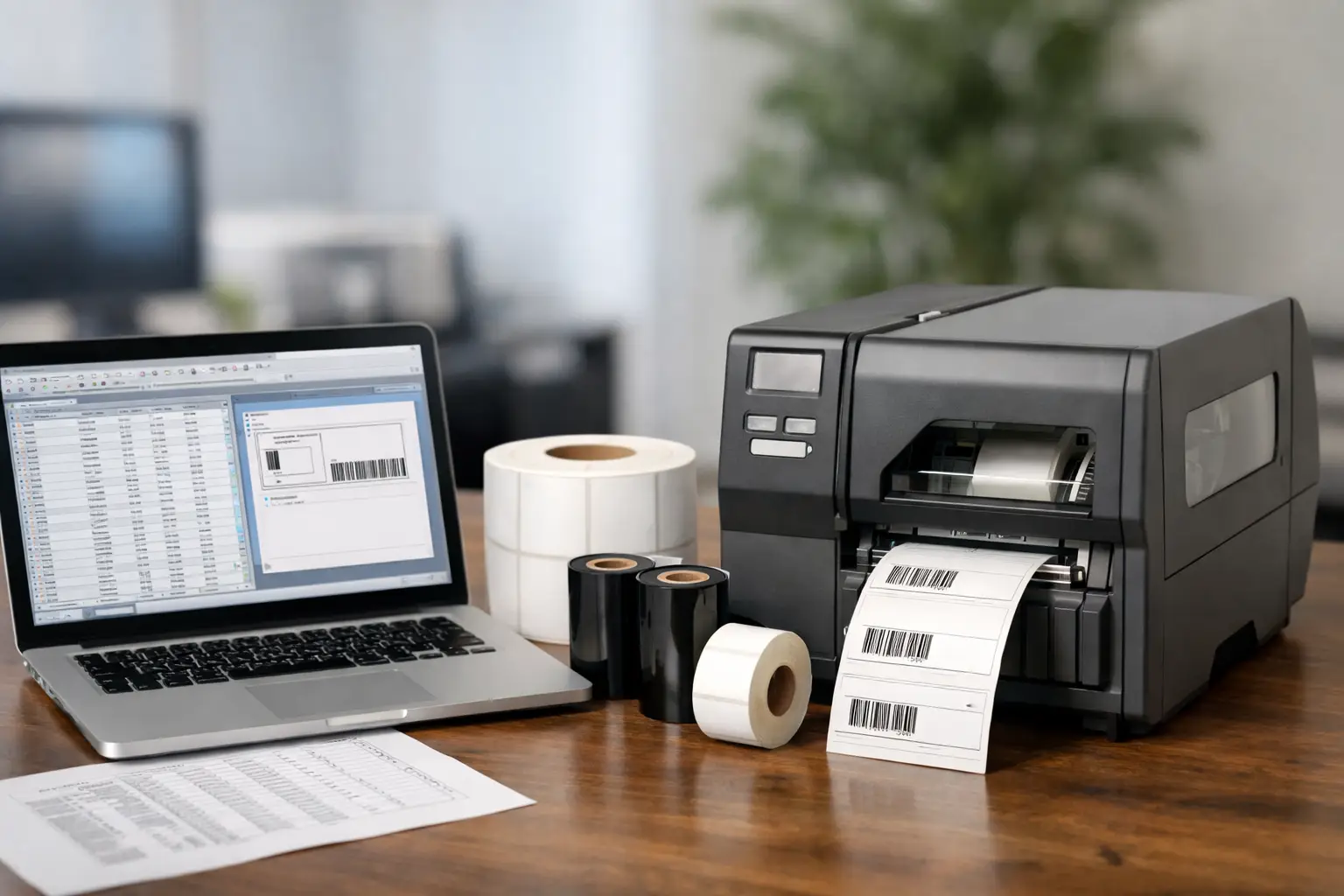
A warehouse can have the right printer, the right label stock, and a well-designed label template, then still lose time because every SKU, lot number, or shipping record must be typed by hand. Can EasyLabel import Excel data? Yes. EasyLabel can use spreadsheet data to populate variable label fields, making it practical for operations that already maintain item, inventory, customer, asset, or production information in Excel.
That capability matters because manual entry is where many labeling errors begin. A single incorrect digit in a UPC, serial number, expiration date, or location code can create receiving delays, traceability problems, chargebacks, or a failed compliance inspection. Connecting label output to a maintained data source gives teams a more controlled way to print variable information at the point of use.
Can EasyLabel Import Excel Data Directly?
EasyLabel is designed for database-driven label printing, and Excel workbooks can serve as a source of variable information when they are prepared and connected correctly. In a typical setup, the spreadsheet contains a clear header row and one row for each label record. EasyLabel reads the defined fields and places them into text objects, barcode objects, counters, or other variable elements in the label format.
For example, a food producer may maintain columns for product name, SKU, lot number, packed date, best-by date, and UPC. A distribution operation may use item number, description, customer number, carton ID, and destination. Instead of redesigning or retyping each label, the operator selects the relevant records and prints labels using the existing format.
The exact connection method can depend on the EasyLabel version, the Windows environment, and the Excel file structure. In some cases, a spreadsheet connection may rely on the appropriate Microsoft data driver or an ODBC-style database connection. That is normal for industrial label software. The important question is not simply whether a workbook opens on screen, but whether its data is organized in a dependable form for repeatable label printing.
What Excel Data Import Solves on the Production Floor
Excel is often the working database for smaller and mid-sized operations. It is familiar, flexible, and readily available to purchasing, production, quality, and shipping teams. Using it with EasyLabel lets a business retain that familiar data-maintenance process while eliminating unnecessary hand entry at the printer.
This is especially useful when label information changes frequently but the label layout does not. A manufacturer can create one approved product label format and populate it with different part descriptions, barcode values, country-of-origin statements, revision levels, and batch details. A warehouse can print location labels or pallet labels from a controlled spreadsheet rather than creating individual label files for every record.
The benefit is not just speed. It is consistency. The font size, barcode symbology, human-readable data placement, warning statements, and logo remain fixed in the approved design. Operators print the variable fields from the data source instead of making on-the-fly edits to the label layout.
Common Excel-to-label applications
EasyLabel spreadsheet workflows fit a wide range of identification jobs, including inventory labels, product identification, shelf labels, asset tags, carton labels, shipping labels, serialized equipment labels, and regulatory or traceability labels. A well-built format can also combine imported data with calculated fields, date functions, or serial counters where the workflow requires them.
For barcode applications, imported data is particularly valuable. The barcode should encode the same controlled value that appears in the supporting system or spreadsheet. EasyLabel can place the selected field into an appropriate barcode object while also printing readable text below it, helping receiving personnel and warehouse staff verify the label without a scanner.
Prepare the Spreadsheet Before Connecting It
The quality of imported labels depends heavily on the quality of the spreadsheet. Excel is forgiving when people use it as a working document. Label printing is less forgiving because the data must be consistent enough to produce an accurate record every time.
Start with a single header row using simple, unique names such as `PartNumber`, `Description`, `LotNumber`, `DateCode`, and `BarcodeValue`. Avoid blank header cells, merged cells, decorative title rows, and multiple tables on the same worksheet. Keep each row focused on one label record unless the print workflow intentionally combines several rows into a single label.
Data types deserve attention. ZIP codes, customer numbers, SKUs, and serial numbers may contain leading zeroes. If Excel treats them as numbers, those zeroes can disappear. Format those columns as text before loading data. Dates also require care. A date that appears correctly in Excel may print differently if the field format is not specified in the label software.
It is also wise to keep formulas under control. EasyLabel needs the resulting value, not a confusing mix of formulas, error values, blank results, and manually overridden cells. If a formula-driven workbook is essential, test the saved file and verify that every calculated value appears as expected before putting it into a production workflow.
Build the Label Format Around the Data
Once the spreadsheet fields are available, the EasyLabel format should map each field deliberately. Assign `PartNumber` to the item number text object, `Description` to the product description, and `BarcodeValue` to the barcode object. Do not assume a barcode scanner will correct poor source data. If the wrong value is imported, it can still scan perfectly while identifying the wrong item.
Print a short proof run before releasing a new label. Verify the visible text, scan every barcode, check date formatting, and confirm that long descriptions do not overflow their assigned space. For thermal transfer labels, also verify print darkness and ribbon-to-label compatibility. A clean design file cannot compensate for ribbon smudging, poor edge definition, or a label material that does not suit the operating environment.
If the same job runs regularly, protect the approved format from unnecessary changes. The best workflow gives authorized users a straightforward way to select records and print, while limiting opportunities to move barcode objects, change field mappings, or substitute the wrong label stock.
Excel Is Useful, but It Has Limits
Excel import is an excellent fit for many operations, but it is not the right architecture for every business. For a few hundred controlled records, periodic product runs, asset identification, or shipping batches, a spreadsheet can be efficient and easy to maintain. For high-volume, multi-user, real-time operations, the better choice may be a direct connection to an ERP, WMS, SQL database, or another business system.
The trade-off is control. Spreadsheets are easy to edit, which is helpful when a knowledgeable person owns the file. They can also be copied, renamed, modified, or saved in the wrong folder. Establish a clear file owner, use a designated source location, and avoid allowing multiple users to make uncontrolled edits immediately before a print run.
A practical middle ground is to use Excel as an export or review file while maintaining master data in the primary business system. The label operator receives a current, validated file, prints the required records, and retains the approved label format in EasyLabel. This can reduce complexity without forcing a full integration project.
Why EasyLabel Is a Strong Choice for Variable Data Labels
EasyLabel has been a leading label design platform since 1982 and is used worldwide by thousands of companies, including large enterprises and government agencies. Its long record with major printer manufacturers makes it a dependable choice for businesses that need to print labels from structured data without rebuilding their workflow around a subscription model.
That distinction matters when comparing label software. Some competing platforms add recurring subscription requirements or make support dependent on an ongoing contract. EasyLabel does not require a subscription or support contract simply to remain usable. For companies planning a multi-year labeling system, that can make budgeting more predictable.
EasyLabel also supports the practical reality of mixed hardware environments. A business may need to print product labels on one printer, shipping labels on another, and durable asset labels on a thermal transfer unit. The software should support the workflow without becoming the weak point between data and print output.
When a business buys EasyLabel and a Tharo printer from The Label Guy, it also gains a simpler support path. One USA-based support number can address the software, printer, labels, and ribbon choices together. That is more useful than being passed among a software vendor, printer manufacturer, and generic supply reseller when a barcode will not scan or a label format is not printing correctly.
A Better First Test Than Importing the Entire Workbook
Do not begin with every record in a large production file. Create a test worksheet with five to ten representative rows: a standard item, a long description, a value with leading zeroes, a date field, and a barcode value. Print the results on the actual label material and printer that will be used in production.
That small test exposes the issues that matter most: field mapping, barcode readability, text overflow, date presentation, and printer calibration. Once those results are approved, the same format can be used with greater confidence for larger runs.
A spreadsheet should make label printing more accurate, not merely more automated. Build the file cleanly, prove the format on the actual printer and supplies, and keep the approved process simple enough that the next shift can run it correctly.